
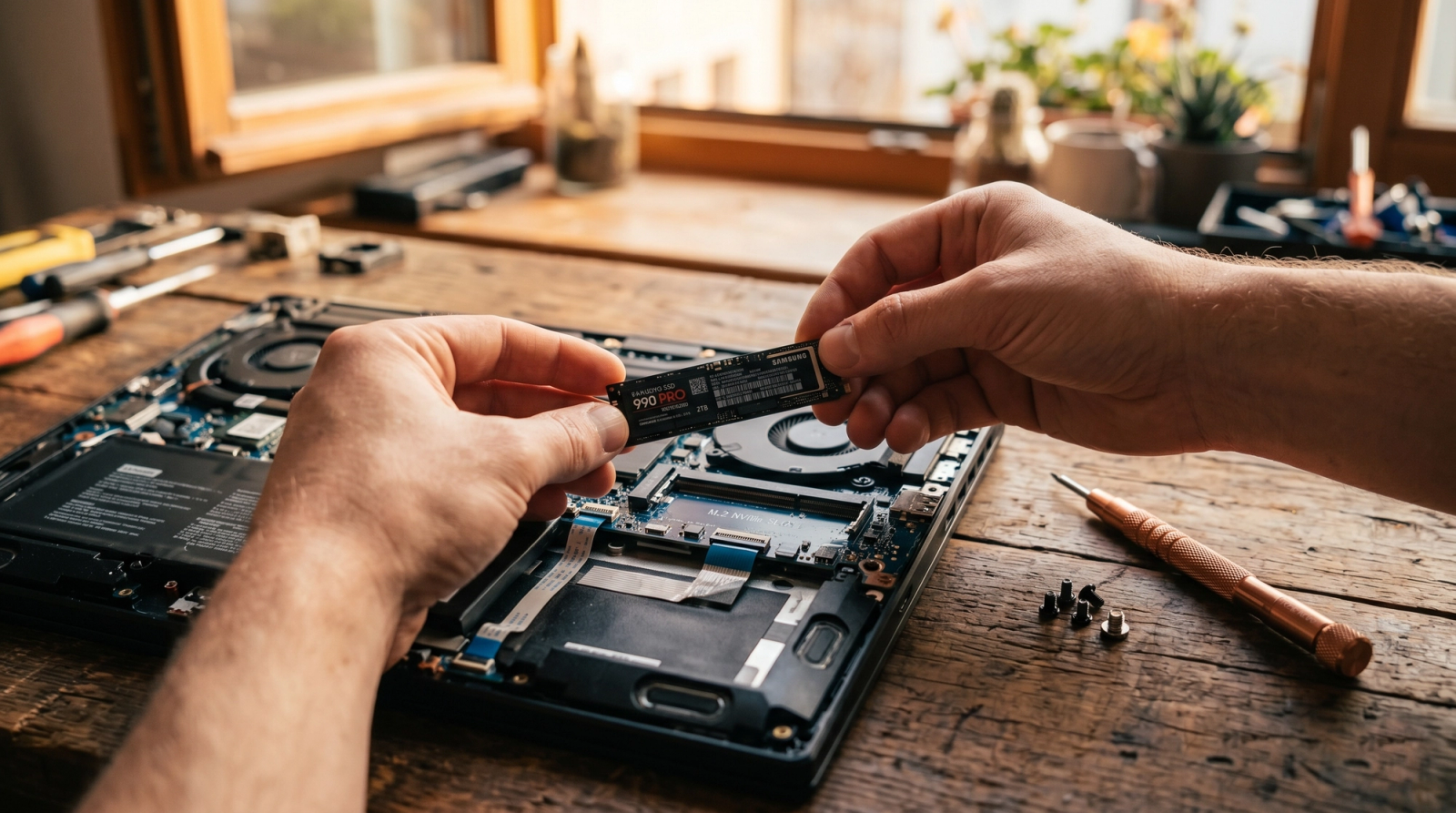
You bought your laptop in 2019. It cost $700. It was great. Then sometime around 2022 it started taking three minutes to boot. By 2024 it was taking five. Now it takes seven minutes to be ready for actual work, the fan runs constantly, Chrome takes 45 seconds to open, and you've been pricing replacements at Best Buy.
We see this exact story play out 10 times a month. And almost every single time, the laptop doesn't need replacing. It needs a part that costs $50 and takes about 30 minutes to install.
Why your laptop got 'slow' in the first place
If your laptop was built before roughly 2018, there's a 90% chance it shipped with a spinning hard drive (HDD). That's literal physical platters spinning at 5,400 or 7,200 RPM with a tiny arm reading data off them, the same fundamental design as 1980s technology, just refined.
As your operating system, browser, and apps have gotten heavier over the years, that mechanical arm has had more and more work to do. Modern Windows reads and writes thousands of small files in the background just sitting idle. An old spinning HDD physically can't keep up. The result feels like 'everything is slow,' but it's really just storage being the bottleneck.
Your CPU is fine. Your RAM is probably fine. Your screen and keyboard are fine. It's the storage drive choking your laptop to death.
What an SSD actually changes
A solid-state drive (SSD) has no moving parts. It's silicon chips, similar to phone storage but much larger. Reading data off it isn't bound by physical spinning, it's electrical and essentially instant by comparison.
Concrete numbers from real customer machines we've upgraded:
- Boot times drop from 90–120 seconds to 8–15 seconds
- Chrome launches in 1–2 seconds instead of 20–45
- Opening a Word document feels instant instead of 'wait a second'
- The fan stops running constantly (the CPU isn't waiting on the drive anymore)
- Battery life often improves slightly (less waiting = less power burned)
The difference is so dramatic that customers regularly text us back the same day asking if we put a different computer back in their case. We didn't. Same CPU, same RAM, same everything else except one $150 part.
When it's worth doing (and when it isn't)
The upgrade is almost always worth it if:
- Your laptop is 3–10 years old
- The battery still holds a charge (or a replacement is reasonable)
- The screen, keyboard, hinges, and ports all work
- You actually like the laptop and don't want to learn a new one
Skip the upgrade if:
- The laptop is over 10 years old and crawls even with a fresh Windows install
- The screen has cracks, hinges are broken, or other physical issues
- You're already on Windows 11 with an SSD and it's still slow (different problem entirely)
- You honestly just want a new laptop (we can help build, spec, or transfer too)
A real Orlando example
A customer in Winter Park brought us a 2020 Dell XPS last month — beautiful machine, gorgeous screen, 16GB of RAM, but slow as molasses. She'd been told by another shop that she needed a new computer and that 'an upgrade wasn't worth it.'
Her drive was a small NVMe SSD that was nearly full and degrading (yes, SSDs slow down when overfilled). We swapped it for a 1TB drive, migrated everything cleanly, and she was back to using the laptop like it was new. Two more years of life out of a $1,400 machine for the cost of a part and 45 minutes.
DIY or hire someone?
If you're handy and have the right screwdrivers, an SSD upgrade is a learnable project. There are YouTube walkthroughs for almost every laptop model, and the physical install takes maybe 20 minutes once everything is laid out.
The thing that catches most DIYers is data migration. Cloning your existing Windows install with all your programs, settings, drivers, and files to the new drive so it boots cleanly is a specific procedure. Most 'just clone it' guides skip steps that come back to bite you three weeks later when Windows starts behaving weirdly.
If you'd rather not do it: that's what we're here for. Tech Forge does mobile SSD upgrades across the Orlando area, we come to your home or office, swap the drive, clone your data with everything intact, and you're up and running in under an hour.
Quick sizing guide
How big an SSD should you actually get?
- 250GB bare minimum. Only if you barely use the laptop and store everything in the cloud.
- 500GB sweet spot for most home users. Plenty of room for Windows, apps, documents, and a healthy photo library.
- 1TB if you have a large photo or video collection, run games, or just want lots of headroom. The new sweet spot in 2026.
- 2TB+ usually overkill on a laptop. Better to combine 1TB internal + cloud or external storage for the big stuff.
When to call us
If your laptop is 3+ years old and feels slow, you almost certainly don't need a new computer. You need 30 minutes and a part that costs less than dinner at a decent Orlando restaurant. Tech Forge does same-week mobile SSD upgrades in Orlando, Winter Park, Windermere, Lake Nona, and surrounding areas. We bring the drive and tools. You're out the door (or rather, we're out the door) in under an hour.
A 7-year-old laptop with an SSD outperforms most brand-new $500 laptops at every task you actually do. The industry doesn't broadcast that because they'd rather sell you a new one. Twenty minutes, fifty dollars, and you skip the upgrade cycle for another 2–3 years.