
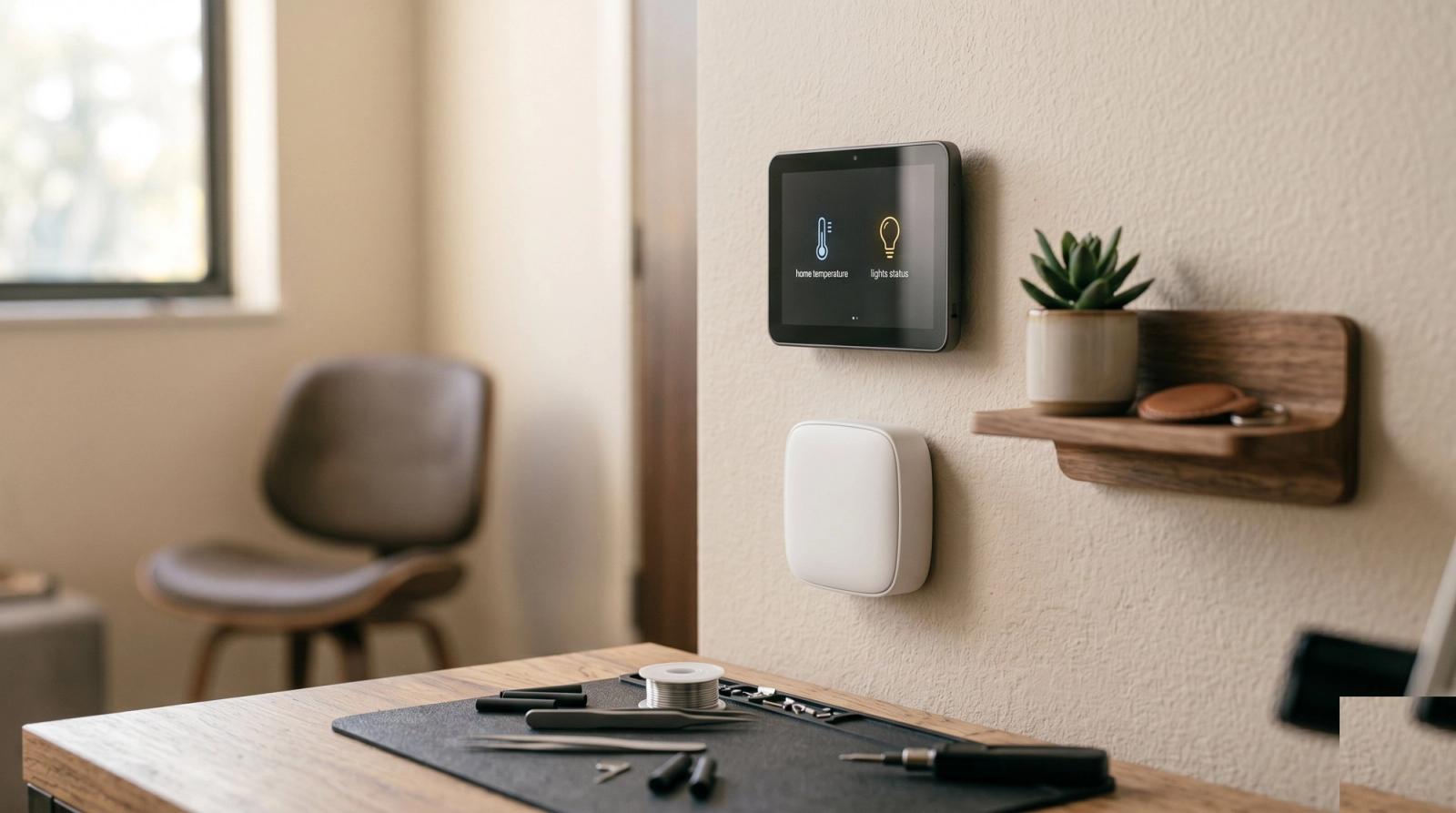
Walk into almost any house in Lake Nona, Baldwin Park, or Winter Garden right now and you will find a thermostat on the wall that talks to the internet, a doorbell with a camera, a few smart plugs, and a voice speaker in the kitchen. Most of those went in over a weekend, one at a time, each with its own app and its own login. Nobody sat down and planned the network they all share.
That is where we come in more often than you would think. A lot of the Wi-Fi complaints we get from Orlando homeowners are not really about the internet plan or the router speed. They come from twenty or thirty small devices crowding the same network as the work laptop and the family tablets, running old firmware, and using the same password that was on the router sticker in 2019. Here is how we approach a smart home that has grown faster than its network.
Start With an Honest Inventory
Before changing any settings, figure out what is actually connected. Most routers and mesh apps have a device list. Open it and go line by line. In a typical Windermere or Doctor Phillips home we find devices the owner forgot about entirely: an old streaming stick behind the TV, a printer from two moves ago, a robot vacuum that was returned but never removed.
- Rename every device you recognize so the list makes sense later ("Kitchen Speaker", "Garage Camera").
- Anything you cannot identify, look up the manufacturer name the router shows, then decide whether it belongs.
- Remove or block anything you no longer own or use.
- Write down which devices only work on 2.4 GHz, because that matters for the next step.
Give Smart Devices Their Own Network
This is the single biggest improvement for most homes. Your laptop, phone, and work computer should not sit on the same network as a $15 smart plug made by a company that may never ship another security update. If one of those cheap devices gets compromised, you do not want it able to see your file shares or your home office PC.
Most modern routers and mesh systems offer a guest network or an IoT network. Put the smart plugs, bulbs, cameras, thermostat, and voice speakers there. Keep computers, phones, and your NAS on the main network. Some systems let you block guest devices from seeing each other as well, which is even better for cameras.
One catch: some devices need to be on the same network as the phone that controls them during setup, and casting to a TV can break across networks. That is normal. We usually do the setup on the main network, then move the device, or we use a router that handles cross-network discovery properly.
Deal With the 2.4 GHz Problem
A huge number of smart home gadgets only speak 2.4 GHz Wi-Fi. That band travels farther through walls, which is why manufacturers like it, but it is also crowded. In apartment buildings around MetroWest and near UCF, and in tightly packed neighborhoods in Oviedo and Ocoee, you can see dozens of neighboring networks fighting over the same few channels.
- If your router combines both bands under one name, some older devices will refuse to connect. Many routers let you split them or enable a compatibility mode.
- Put your IoT network on 2.4 GHz only, and let laptops and phones use 5 GHz or 6 GHz on the main network.
- Choose channel 1, 6, or 11 on 2.4 GHz rather than letting overlap drag everything down.
- If a device on the far side of the house keeps dropping, a mesh node or wired access point fixes it better than moving the router around.
Passwords, Accounts, and Two-Factor
The devices themselves are only half the risk. The cloud accounts behind them are the other half. If someone gets into your camera app account, they do not need to hack the camera. We see a lot of households where every smart home app uses the same email and the same password as an old shopping site that was breached years ago.
- Change the router admin password from the default and write it down somewhere safe.
- Use a unique password for each smart home account, stored in a password manager.
- Turn on two-factor authentication for camera, doorbell, lock, and thermostat accounts at a minimum.
- Remove old family members, former roommates, and past house sitters from shared device access.
- Check which apps still have permission to control your home and revoke the ones you do not use.
Firmware Updates and the End of Support
Most smart devices update themselves quietly, but not all of them. Open each app every few months and look for a firmware or software update option. Pay special attention to the router, because it protects everything behind it. Plenty of routers we pull out of Altamonte Springs and Casselberry homes have not been updated in years, and some are past the point where the maker releases fixes at all.
When a device stops getting updates, it is not dangerous overnight, but it only gets riskier from there. A camera or smart lock that no longer receives security patches is worth replacing. A smart bulb that has lost support is lower stakes, especially if it lives on its own network as described above.
Plan for Florida Power and Storms
Central Florida adds its own wrinkle. Summer afternoon storms knock power out for a few seconds at a time, and every blip forces the router, mesh nodes, and all those smart devices to reconnect at once. Some handle it well. Others come back in a confused state and need a manual restart before they work again.
- Put the modem, router, and main mesh node on a small battery backup so short outages never drop the network.
- Use a proper surge protector for the network gear, not a bargain power strip.
- After a longer outage, restart the modem first, then the router, then the mesh nodes, and give each a minute.
- Know which devices need the internet to function. A smart lock that cannot reach the cloud should still work with a key or local code.
A smart home is only as reliable as the network under it. Most of the "my devices are acting weird" calls we get from Lake Mary and Sanford end up being a router problem, not a device problem.
When to Call in Help
Plenty of homeowners can handle the steps above with an afternoon and some patience. It makes sense to bring someone in when the router does not support a separate IoT network, when you have more than a few cameras, when a home office shares the same network with everything else, or when the mesh system has turned into a mix of brands that do not cooperate. It also makes sense if you simply want it done right the first time.
If your smart home has turned into a pile of apps and dropouts, we can help sort it out. We set up guest and device networks, replace routers that cannot keep up, and clean up the mess left behind by years of plug-and-forget gadgets. Reach out to Tech Forge Computers and tell us what you have connected. We will tell you what it needs, and what it does not.