
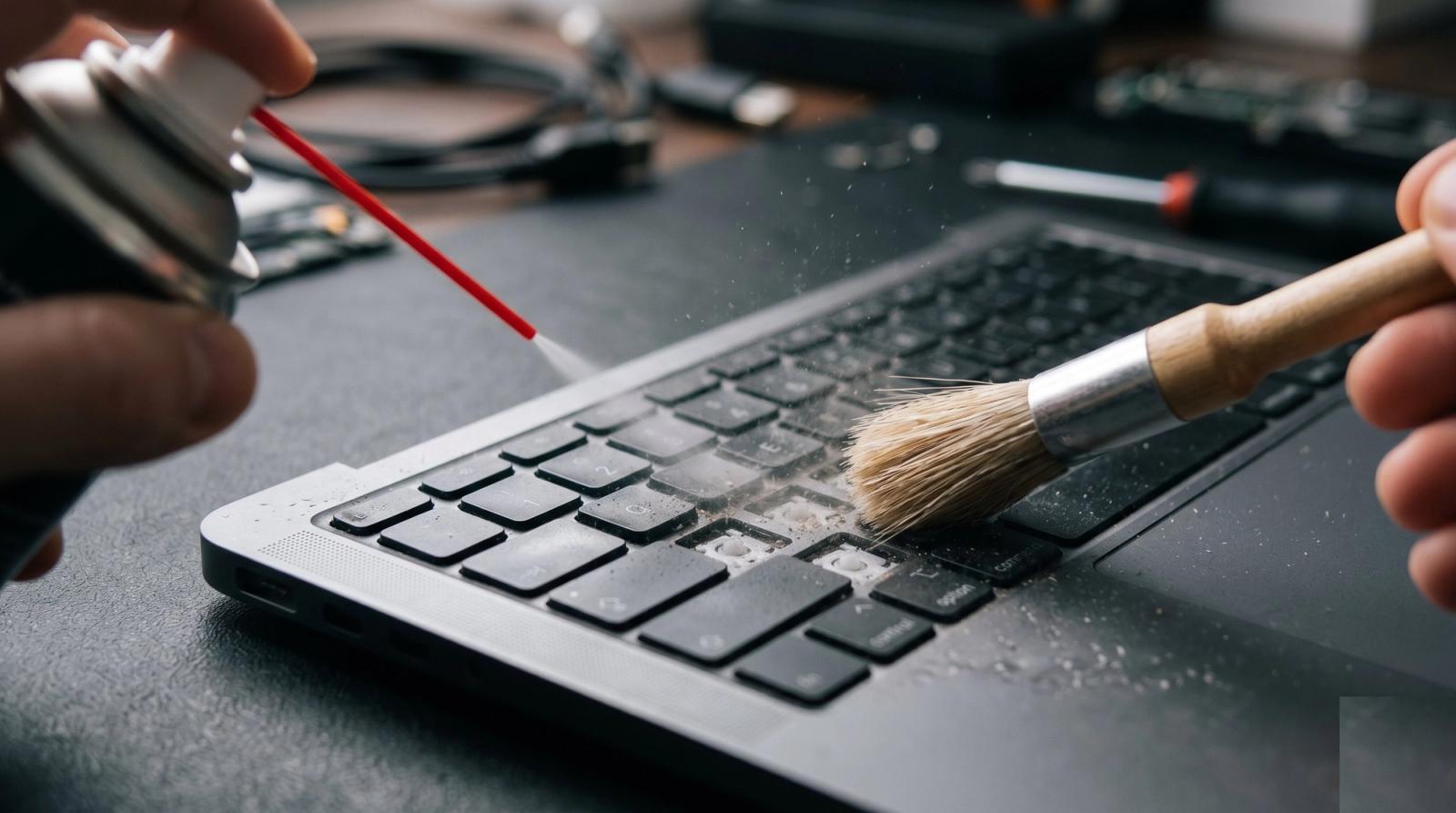
The laptop keyboard is the part of the machine that takes the most abuse and gets the least attention. It collects crumbs from lunch at the desk, dust from the carpet, sunscreen from a Saturday at the lake, and the occasional splash of coffee. In Orlando we add one more ingredient that most of the country does not deal with year round: humidity, which turns ordinary dust into a sticky film that holds onto everything else.
We see the results every week on the bench. A key that needs a hard press to register. A spacebar that works on one side only. A laptop in Winter Park that types double letters, or one in Oviedo where the arrow keys quit entirely after a soda went over. Most of these are fixable, and a fair number are preventable. Here is how we work through them.
Figure Out What Kind of Problem You Have
Keyboard complaints fall into a few buckets, and the fix is completely different for each. Before anyone sprays anything, find out which one you are dealing with.
- One or two keys feel mushy or need extra force: usually debris under the keycap or a worn switch.
- Keys type twice, or repeat on their own: often a dirty contact, sometimes a driver or setting.
- A whole row or block is dead: that points to the ribbon cable or the keyboard assembly, not dirt.
- Nothing types at all, but the machine runs fine: check an external USB keyboard to confirm the laptop itself is healthy.
- The keyboard went strange right after a spill: stop using it and skip to the spill section below.
That external keyboard test is worth doing early. If a plug-in keyboard works perfectly, the laptop and its software are fine and the problem is the built-in keyboard. If the external one misbehaves too, something else is going on.
Routine Cleaning That Will Not Wreck Anything
Most sticky keys come back to life with a careful cleaning. The trick is doing it without pushing the mess deeper or soaking the board underneath.
- Shut the laptop down fully and unplug it. Do not do this on a sleeping machine.
- Tip it upside down at an angle and give it a gentle shake to drop out loose crumbs.
- Use short bursts of compressed air at an angle across the keys, not straight down into them.
- Work a soft brush between the keys to lift the film that air alone will not move.
- Wipe the key tops with a barely damp microfiber cloth, using a little isopropyl alcohol rather than a household cleaner.
- Let it dry completely before powering back on.
Two things to avoid. Do not hold compressed air upside down, because it can spit liquid propellant onto the keys. And do not pop keycaps off unless you know how that specific model clips back together. Modern thin laptops use fragile retainer clips, and a broken clip means the whole keyboard gets replaced over a key that only needed a brush.
Spills Are a Clock, Not a Question
A spill is the one keyboard problem where speed matters more than technique. Liquid does not stop at the keys. It runs down into the board, and sugary drinks leave residue that keeps corroding long after everything looks dry.
- Power the laptop off immediately by holding the power button. Do not shut down politely through the menu.
- Unplug it, and remove the battery if the model allows.
- Turn it upside down like a tent so the liquid runs out instead of further in.
- Blot what you can reach. Do not use a hair dryer, which drives moisture deeper and can warp parts.
- Leave it off and drying for at least a full day, longer for anything sugary.
- Bring it in rather than testing it repeatedly. Every power-on while it is wet risks a short.
Plain water spills caught fast often end well. Coffee with sugar, soda, and juice are harder, because the sticky residue stays behind and keeps eating at contacts for weeks. If a sweet drink went in, an internal cleaning is worth it even if the machine seems fine.
When Cleaning Is Not Enough
Some keyboards are simply worn out. Laptops that have been through a few years of daily work in a College Park home office or a Lake Mary sales job rack up millions of keystrokes, and the switches under the most-used keys wear before the rest. Others arrive with real damage: a cracked keycap, a torn ribbon cable, or corrosion from an old spill nobody mentioned.
Replacement cost varies a lot by model. On many business laptops the keyboard is a separate part held in with a few screws, and the swap is quick and inexpensive. On thin consumer models the keyboard is riveted into the top case, which turns it into a bigger job. We check which design you have before quoting, because that single detail is usually the difference between a cheap repair and one worth weighing against the value of the machine.
Keeping It Clean in a Florida House
Humidity and daily habits do most of the damage here. A few small changes buy a lot of life.
- Keep drinks beside the laptop on a lower surface, not on the same table above keyboard level.
- Run a quick air and brush cleaning every couple of months rather than one deep clean a year.
- Use a thin keyboard cover if you eat at the desk, and wash it instead of the laptop.
- Wash your hands before long sessions. Sunscreen and bug spray are rough on key coatings.
- Do not leave a laptop closed in a hot car in August. Heat and trapped moisture age everything inside.
- If you work on a patio or by the pool in Windermere or Baldwin Park, pack the laptop away before the afternoon rain rolls in.
Most of the dead keyboards we replace were not killed by one accident. They were slowly packed with crumbs and film for two years, and a small spill finished the job.
What to Expect When You Bring It In
We start by confirming where the fault actually is, since a surprising number of keyboard complaints turn out to be a software setting, a stuck modifier key, or a failing ribbon connection that is loose rather than broken. If a deep clean will fix it, that is the cheapest path and we take it. If the keyboard needs replacing, we tell you what the part costs for your specific model and how the repair fits against the age of the machine. On an older laptop that is already slow, we will say plainly when the money is better spent elsewhere.
If your keyboard is fighting you, bring the laptop in before you start prying keys off. We clean, test, and replace keyboards on most major brands, and we will tell you up front whether the repair is worth it on your machine. See what we handle at Tech Forge Computers or just stop by with the laptop and we will take a look.