
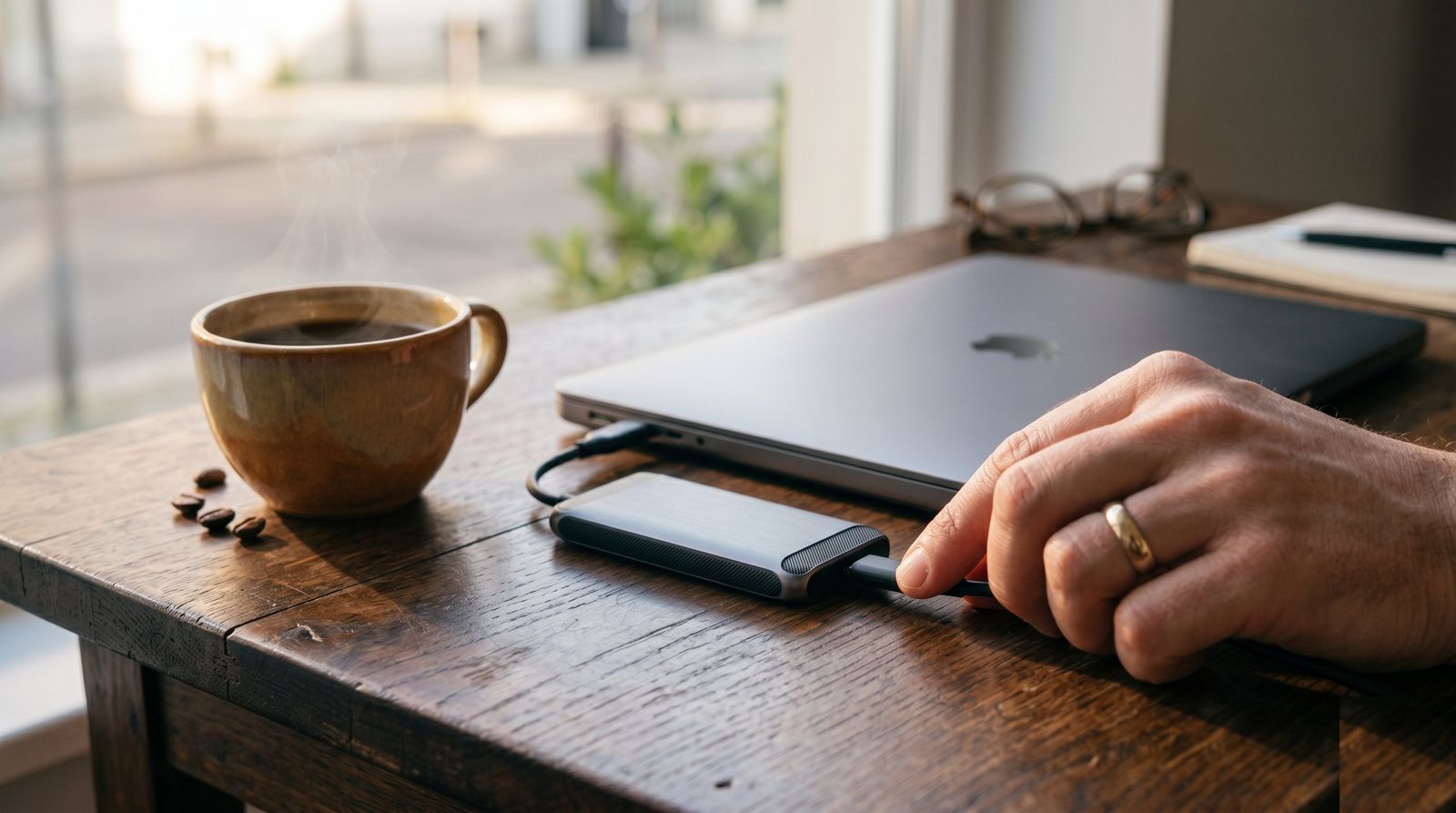
Most of the data recovery calls we get do not start with a dramatic story. A laptop in Lake Mary will not boot one morning. A desktop in Doctor Phillips starts clicking after a brownout. A MacBook in College Park takes a coffee spill and the logic board goes with it. The hardware can usually be repaired or replaced. The photos, the tax folders, and the client files on it are a different question, and the answer depends almost entirely on whether there was a backup.
In Orlando we have more reasons than most places to take this seriously. Afternoon storms knock the power out across Apopka and Ocoee several times a summer, the humidity is hard on aging drives, and a lot of people in Altamonte Springs, Maitland, and Winter Garden now run a small business from a laptop at the kitchen table. A small external SSD and a ten minute routine cover most of that risk. Here is how we set it up for customers, and how you can do it yourself.
Why an External SSD Instead of an Old Hard Drive
The spinning USB hard drive in your desk drawer still works as a backup target, but solid state drives have become cheap enough that we recommend them for most people. They are faster, they handle being dropped or tossed in a bag much better, and they do not have a motor that can seize after sitting unused in a warm garage for a year.
- Speed: a modern USB-C SSD can copy a full photo library in minutes instead of an hour, which makes people far more likely to actually run the backup.
- Durability: no moving parts means a bump on the desk or a fall from a backpack is rarely fatal.
- Size: most fit in a shirt pocket, so it is easy to keep one at home and one at the office.
- Price: a 1TB or 2TB drive from a known brand costs less than a single hour of professional data recovery work.
One caution. Cheap no-name drives sold online sometimes report a capacity they do not actually have. Buy from a brand you recognize, through a retailer you trust.
Pick the Right Size and Connection
A good rule is to buy at least twice the amount of data you currently have. If your laptop shows 400GB used, a 1TB drive gives the backup software room to keep older versions of your files, which is what saves you when you overwrite a document or a file gets corrupted and you do not notice for a week.
For the connection, match the port on your computer. Most laptops from the last few years have USB-C, and a USB-C drive with a short cable is the simplest setup. Older Windows desktops in Casselberry and Longwood offices often only have USB-A ports, and most SSDs ship with an adapter or a second cable for that.
Set Up Automatic Backups on Windows and Mac
The drive only helps if the backup software runs on its own. Both major operating systems have a free built in option that is good enough for most homes and small offices.
- On a Mac, plug in the drive, open System Settings, choose General, then Time Machine, and select the drive. Turn on the option to encrypt the backup and set a password you will remember.
- On Windows 11, open Control Panel, go to File History, and select the external drive. Click Advanced settings and change how often it saves copies; every hour is a sensible default.
- If you want a full system image on Windows, so you can restore the whole machine and not just your files, a tool like Macrium Reflect or the backup software bundled with your drive can handle that on a schedule.
- Run the first backup while you are home and leave it alone. It can take a few hours. After that, each backup only copies what changed.
Build the Weekly Habit
The weakest part of any backup plan is a person who forgets to plug the drive in. We tell customers to tie it to something they already do every week. A Winter Park real estate agent we work with plugs the drive in every Sunday night while planning the week. A family in Oviedo does it when the kids put their laptops on the charger for the weekend.
- Pick one day and one time, and set a recurring reminder on your phone.
- Leave the drive plugged in until the backup finishes, then eject it properly before unplugging.
- Once a month, open the backup and pull one file back out to confirm it actually works.
- Store the drive away from the computer, ideally in a different room, so a single spill, theft, or lightning strike does not take out both.
Add a Second Copy Somewhere Else
An external SSD protects you from a dead drive, a stolen laptop, and most accidental deletions. It does not protect you if the drive sits next to the computer when a storm floods the room or a burglar takes everything on the desk. That is where the 3-2-1 approach comes in: three copies of your important data, on two different kinds of storage, with one copy kept offsite.
For most people offsite means a cloud service. OneDrive, iCloud, Google Drive, and Backblaze all work, and many households already pay for one through a phone or Microsoft 365 plan without using it. Another simple option is a second SSD that lives at your office or a family member's house in Sanford or Windermere, and gets swapped with the home drive once a month.
Signs It Is Time to Call a Pro
Some situations should not be handled with a backup drive and a few clicks. If your computer is making clicking or grinding sounds, freezes when you open certain folders, or shows a warning about drive health, stop using it and do not run a backup that hammers a failing drive for hours. Every hour a dying drive runs can make recovery harder and more expensive.
- The computer will not boot and you have no recent backup.
- Files open as gibberish or show as zero bytes.
- Your backup drive itself stopped showing up when you plug it in.
- You run a business and need backups across several computers set up the same way.
The backup that saves you is never the one you meant to set up next weekend. It is the one that was already running when the drive died.
We see the difference every week on the bench. Customers with a recent backup get their files back the same day on a repaired or new machine. Customers without one are often looking at a recovery bill and a lot of uncertainty.
If you want help picking a drive, setting up automatic backups, or checking whether your current backup actually works, get in touch with Tech Forge Computers. We handle home and small business setups across Orlando and can usually have you protected in a single visit.