
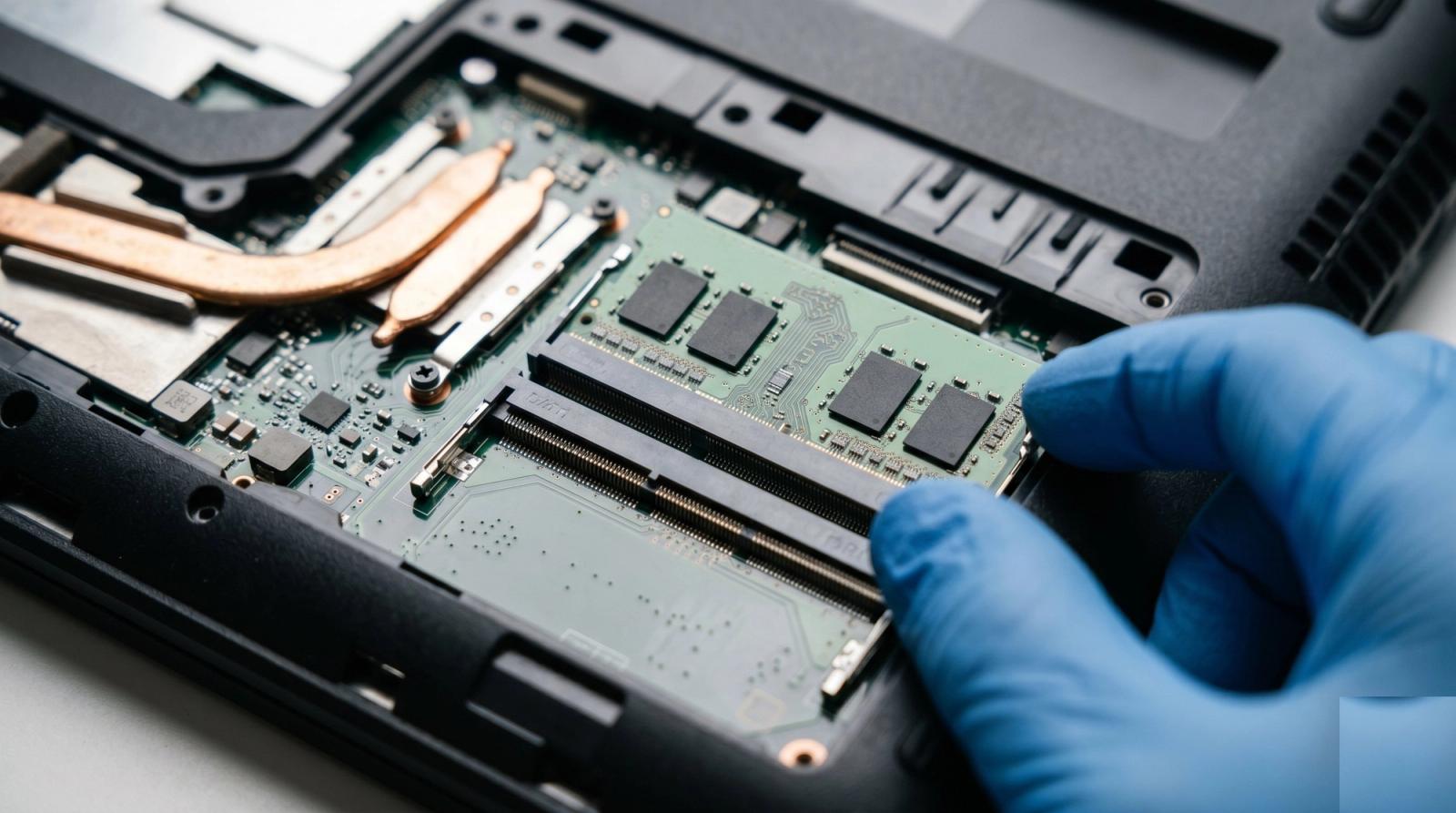
Every week someone starts a conversation with us convinced that more memory is the fix for a computer that has gotten painfully slow. Sometimes they are right, and a cheap RAM upgrade turns a frustrating machine back into a fast one. Just as often, the memory was never the problem, and spending money on more of it changes nothing at all. If you live or work anywhere around Orlando, from Winter Park to Lake Mary to Doctor Phillips, this is one of the most common questions we field, so let us clear it up for good.
RAM, short for random access memory, is the short term workspace your computer uses to hold whatever it is actively doing right now. Think of it as the size of your desk. A bigger desk lets you keep more open at once without shuffling papers into a drawer. But a bigger desk does nothing if the real trouble is a slow filing cabinet (your storage drive) or a tired old worker (your processor). Knowing which bottleneck you actually have is the difference between a smart forty dollar fix and money thrown away.
How to Tell If RAM Is Actually Your Problem
The good news is that you can check this yourself in about two minutes, before spending a cent. On a Windows machine, open Task Manager by pressing Ctrl, Shift, and Escape together, click the Performance tab, and watch the Memory graph while you use the computer the way you normally do.
- If memory sits at 85 percent or higher during ordinary work, and the machine crawls the moment you open a few browser tabs, RAM is very likely your bottleneck.
- If memory stays well under 70 percent but the computer is still sluggish, adding more will not help, and the culprit is almost always an aging drive or a failing part.
- If the Disk graph is pinned at 100 percent nearly all the time, that points squarely at storage, not memory.
The Sweet Spot for Everyday Orlando Users
Once you know memory really is the issue, the next question is how much you actually need. More is not always better, and the right number depends on how you use the machine.
- 8 GB is the practical minimum for Windows 11, and it already feels tight the moment you run a browser alongside a couple of other apps.
- 16 GB is the comfortable standard we recommend for most home offices, students, and small business desktops. It handles dozens of tabs, video calls, and office apps without complaint.
- 32 GB is worth it if you edit video or photos, run virtual machines, or keep genuinely enormous spreadsheets open. Most people never touch that ceiling.
- 64 GB and beyond is specialist territory for heavy content creation and engineering work, and very few home users will ever need it.
When More RAM Will Not Fix a Thing
This is the part that saves people money. A memory upgrade is useless when the real problem lives somewhere else, and here are the usual suspects we find on the bench.
- The slowdown comes from a mechanical hard drive. Swapping it for a solid state drive is the single biggest speed jump for an older machine, and no amount of RAM comes close.
- The computer is bogged down by malware, junkware, or a hundred startup programs fighting for attention. Cleaning that up costs nothing in parts.
- The processor is simply a decade old. A ten year old dual core chip has hard limits that extra memory cannot lift.
- The machine is overheating and throttling itself to protect its components, something we see constantly in Central Florida once dust and summer heat combine.
The Florida Angle Most People Miss
Heat and humidity are hard on computers here, and they change the RAM conversation in a way folks in cooler states never think about. When we open a machine to add memory for a customer in Maitland or Oviedo, we very often find the inside caked in dust, with fans struggling and thermal paste dried out. That grime traps heat, and heat makes a computer feel slow no matter how much memory it has. So a RAM upgrade becomes the perfect moment to blow out the dust, clean the fans, and refresh the cooling while the case is already open.
Treating the upgrade as a small tune up rather than a single part swap is why our customers walk away with a machine that feels years younger, not just one with a bigger number on the memory spec.
Laptop or Desktop: What You Can Actually Upgrade
Before you buy a single stick, it pays to know whether your machine can even take it. This is where a lot of well meaning DIY plans hit a wall.
- Most desktops have open memory slots and are easy to upgrade, often in under fifteen minutes.
- Many thin, modern laptops now solder the RAM directly to the board, which means it cannot be changed later at all. What you bought is what you keep.
- Some laptops offer one upgradable slot next to soldered memory, a middle ground worth checking before you assume anything.
Do It Yourself or Bring It In
If your machine has open slots, adding memory is one of the friendlier upgrades to attempt at home. The catch is matching the exact right module: the correct type (DDR4 and DDR5 are not interchangeable), the right speed, and a capacity your motherboard actually supports. Guess wrong and the machine may not post at all. If any of that feels like a gamble, that is exactly the kind of quick job we handle every day, and we will confirm the right part before anything gets ordered.
The best upgrade is the one that fixes your actual bottleneck, not the one that sounds impressive on a spec sheet.
If your Orlando computer has slowed to a crawl and you are not sure whether RAM, storage, or something else is to blame, we will diagnose it honestly and recommend only the upgrade that actually helps. Reach out through our contact page to set up a quick diagnostic, and we will tell you straight whether more memory is worth it for your machine.