
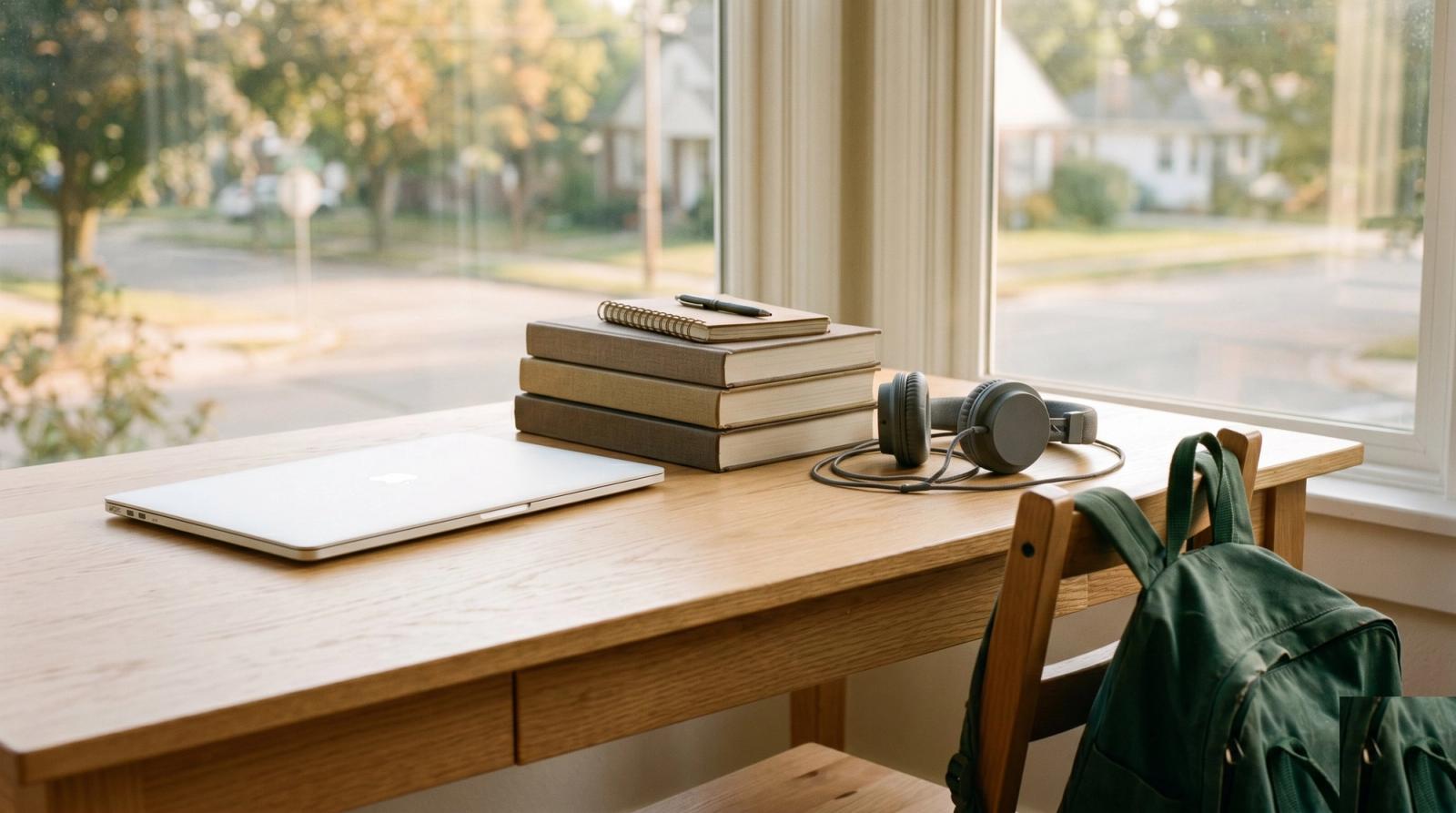
Move-in day at UCF, and at the satellite campuses scattered around Oviedo, Lake Nona, and Winter Park, brings the same phone calls to our shop every year. A laptop that worked fine all summer suddenly won't hold a charge, or it takes four minutes to boot, or the fan sounds like a leaf blower the moment three browser tabs are open. July is when we tell families in College Park, Baldwin Park, and Winter Garden to bring the machine in before syllabus week, not during it.
This checklist comes straight from the repair tickets we see every August. A short list of problems accounts for most of the laptops that land on our bench the first week of classes. Work through it now, while there is still time to fix things instead of scrambling for a loaner during the first round of homework.
Start With a Full Diagnostic, Not a Guess
Before you pack anything, run a real diagnostic instead of assuming the machine is fine because it turned on this morning. We check battery health, drive health, thermal performance, and RAM stability on every back-to-school laptop that comes through the shop, and we catch a failing drive or a swelling battery often enough that we consider this step mandatory, not optional. A student pulling late nights in a Lake Nona apartment or a dorm room near UCF does not have time for a laptop that dies mid paper, and a full checkup takes less than thirty minutes on our bench.
Check Battery Health Before You Assume It Is Dead
Batteries degrade quietly. A laptop that lasted six hours freshman year might be down to ninety minutes by junior year, and most students never notice until the charger becomes a permanent leash.
- On Windows, run powercfg /batteryreport from Command Prompt and compare the design capacity to the full charge capacity.
- On a MacBook, check Battery Health under System Settings, then Battery, and look at the cycle count.
- If capacity has dropped below 70 percent, plan on a battery swap before the semester starts, not after it strands you in class.
- Replace the charging cable and brick too if either one runs hot or the connection feels loose.
Clear Out Storage Before the Semester, Not During It
A laptop with only a few gigabytes of free space runs slow no matter how fast the processor is. Windows and macOS both need breathing room to manage updates, virtual memory, and background caching, and a nearly full drive is one of the most common reasons a two year old laptop suddenly feels unusable.
- Uninstall software from previous semesters or old group projects that will not get reinstalled.
- Move photos, videos, and old class files to an external SSD or a cloud drive.
- Empty the downloads folder, it is almost always the biggest offender.
- If the drive is still an old spinning hard disk, an SSD upgrade is one of the highest value repairs we do, and it usually takes about an hour.
Lock Down Security and Software Before You Leave Home
- Update the operating system and every browser to the latest version.
- Turn on the built in antivirus and confirm it is actually running, not just installed.
- Set up Find My Mac or Find My Device so a lost or stolen laptop can be located or wiped remotely.
- Install a password manager instead of reusing the same login across school portals, banking apps, and streaming accounts.
- Turn on automatic backups through OneDrive, iCloud, or a similar service so a crashed drive does not mean a lost semester.
Back Up Everything, Because Dorm Life Is Hard on Hardware
Dorm rooms and shared apartments in College Park and Baldwin Park are not kind to electronics. Laptops get knocked off desks, drinks get spilled near keyboards, and roommates borrow chargers that never come back. Cloud backup handles documents well, but a local external SSD is faster for large files and gives you a copy that does not depend on an internet connection during a Florida storm, when power and Wi-Fi can both go down for hours at a time.
Pack the Right Accessories, Skip the Rest
- A surge protector power strip, Florida's summer storms are hard on anything plugged into the wall.
- A portable external SSD for backups and large files.
- A basic laptop stand or cooling pad, dorm rooms run warm and airflow matters more than people expect.
- A cable lock if the laptop lives in a shared study space or library carrel for long stretches.
- Skip the extended warranty add ons most retailers push at checkout, a local repair shop is almost always cheaper and faster than a mail in warranty claim.
When a Repair Makes Sense and When It Is Time to Replace
If the repair costs more than half of what a comparable new machine costs, or the laptop is already past its fourth year, we tell families to put that money toward something new instead of patching an old machine one more time.
Outside of that rule of thumb, most back-to-school laptop problems are simple, inexpensive fixes: a battery, a drive upgrade, a fan cleaning, a fresh operating system install. We would rather tell a parent in Winter Garden that their student's three year old laptop just needs about eighty dollars of work than sell them a new one they don't need.
Bring the laptop by before the first week of classes and we will run the full diagnostic while you wait. Check out our repair services to see what a back-to-school tune-up includes, or stop by the shop in person if you would rather talk it through first.